Table of Contents
Configuration
This section will help you understand how to configure your TCG using Stack—code-free from your TCG's basic needs.
When you go to the Settings > Configuration page of your Stack admin, you will see five (5) tabs of different configurations: General, File Paths, Cards, Rewards and Others. You will notice that some of the fields were already filled by default. I will try my best to explain the empty fields one tab at a time.
General Settings
- TCG Discord/Twitter – If your TCG has a Discord server or Twitter account, you can add them on these fields. Do keep in mind to only add the invitation code or username of these social media accounts; no need to include the complete URL. A placeholder is added to give you a guide on what to put on these fields.

- TCG Registration/Status – By default, it is set to Close. Make sure to only set this to open when your TCG is ready for prejoin. DO NOT open a TCG's registration if you still have a lot of things to fix on your TCG. In line with the registration, the TCG status is set to Upcoming by default. This is to let any potential members know that your TCG is currently in the works.

- TCG Currencies – This is where you're going to put your currencies. If you have more than one currency, separate the file names with a comma followed by a space. Take note on the arrangement of your currencies since your game rewards and other services will rely on this arrangement.
 If you have two currencies—special (e.g. diamonds) and normal (e.g. coins), you have to arrange them as diamond.png, coin.png respectively. This way, when you define a game rewards currencies, you will write the values as 0 | 20—which can be simply read as 0 diamond and 20 coins.
- TCG Placeholder Title/Text – Since your auto update will be running in cron jobs, this is where you'll define your update's title and simple text if you'll be unable to post an actual update by the time your cron job ran.
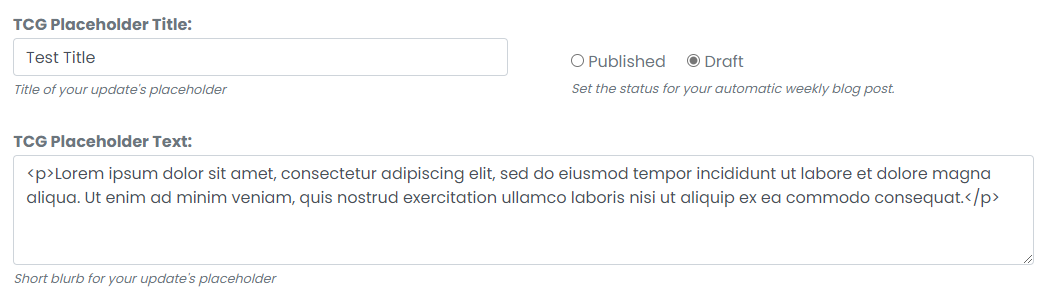 Kindly take note that the auto update's job is to only list down newly approved members, new masteries, level ups, deck releases and such for that week's update. It will not automatically type your actual update if you had done something like you'll be hosting an event and the likes. Therefore, your blog update is set to Draft by default. This way, you can still edit the blog post with an actual update without your members missing it because they've already played for that week.
File Path Settings
- Cards URL – This will be the complete URL of your cards directory. The cards folder is already placed under the
/imagesfolder, so your cards URL should look like this:http://yourdomain.com/images/cards/ <- If you have your TCG on a domain http://tcg.yourdomain.com/images/cards/ <- If you have your TCG on a subdomain
- Images URL – This will be the complete URL of your general images directory, so your images URL should look like this:
http://yourdomain.com/images/         <- If you have your TCG on a domain
http://tcg.yourdomain.com/images/     <- If you have your TCG on a subdomain
Cards
- File Type – Define the general file type of your images (e.g. gif, png, jpg). If you have an animated version of your cards (e.g. normal decks are static in PNG format and special decks are animated in GIF format), there is no need to define it on this field, unless you use GIF for both static and animated cards.
- Card Count/Worth – These fields will let you define your card count and card worth. Please take note that you only have to define the maximum card count that you have for your decks. As for the card worth field, if you have multiple card worth (e.g. 1 for regular and 2 for special decks), make sure to input them starting from the lowest to highest and separate them with a comma and a space.

- Card Size – This is where you'll define the width and height of your card template in pixels. Please take note that this is only for the cards and not for the mastery or level badges. You also don't need to add the px value (e.g. 100 instead of 100px).

- Link Button Size – This is going to be the general size of your link buttons—width and height in pixels—which is what you'll be using and/or requiring for your affiliates. This is actually an optional field for now, so you can have as many link button sizes as you need.

Rewards Settings
Pro-tip! How to write values for multiple currencies? Simple! Just separate the numerical values with a space and a vertical slash (e.g. 0 | 10 | 5 | 3). Do keep in mind the correct arrangement of the currencies' image files from the General Settings.
- Starter Pack – There are four (4) fields under the starter pack rewards. The first two are the rewards to define how many cards from collecting deck and random cards to be given away upon joining. The other two are for your player's starter pack bonus to define how many additional random cards and currencies to be given away when you approve their membership.

- Deck Masteries & Level Ups – Both of these rewards section have three fields, and these are the number of choice cards and random cards, and the number of currencies that they will receive when they submit a deck mastery and/or level up forms.
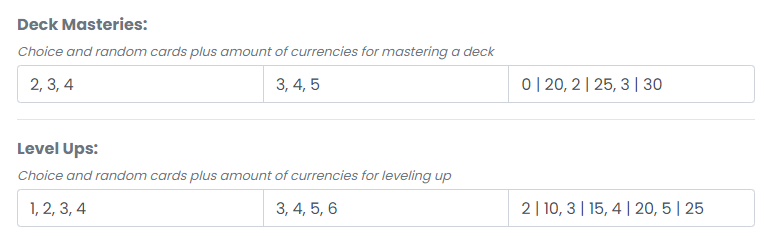 Deck Mastery – If you have multiple card worth that you want to have different set of rewards, you have to follow the format from the given example above. Otherwise, just put a single reward for each field.
Level Ups – Same with the level ups settings, if you have multiple level tiers and want to have different set of rewards as well, follow the format from the given example above.
- Remaining Rewards – Which are the trading, special masteries (for event and member card masteries), daily login, deck donation and deck making. All of them have only two fields for their respective rewards—random cards and currencies.
The rewards for the deck donation works only for 1 reward tier. So if your donations have different rewards tier (e.g. 2 random for puzzle decks and 5 random for special decks), you will have to make a work-around for it. The multiple deck donation rewards are currently under development and will be added some time in the future releases.
Other Settings
The fields under this configuration tab are pretty much self-explanatory and you will still need to configure them according to how you wish to setup your TCG. Please take note that if you wish to enable the chat box and the featured member, you will have to install these plugins first (if they aren't installed by default) which you'll find on the Applications > Plugins menu.